MFA Devices option in Tools and User Profile
The MFA Devices tab provides tools for managing devices used with TOTP (Time‑based One‑Time Passcode). TOTP is a form of Multi‑Factor Authentication (MFA) that generates temporary, single‑use verification codes through an Authenticator app on the user’s device, adding an extra layer of security during the sign‑in process.
The MFA Devices pop-up window and tab enable you to:
-
Register new MFA Devices.
-
Manage your registered MFA Devices.
Note: You cannot register a device if you already registered five devices for MFA or if you enter a Device Name that is already in use.
Add MFA Devices
This section shows you how to register new MFA Devices.
MFA Devices pop-up window or tab
Access the MFA Devices pop-up window or tab through one of these paths:
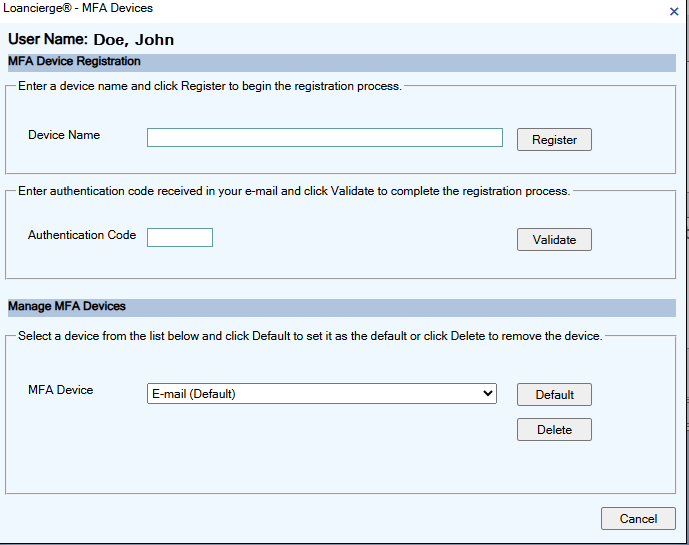
- Tools menu > MFA Devices. There is no security permission required. Users can register devices for themselves from this page.
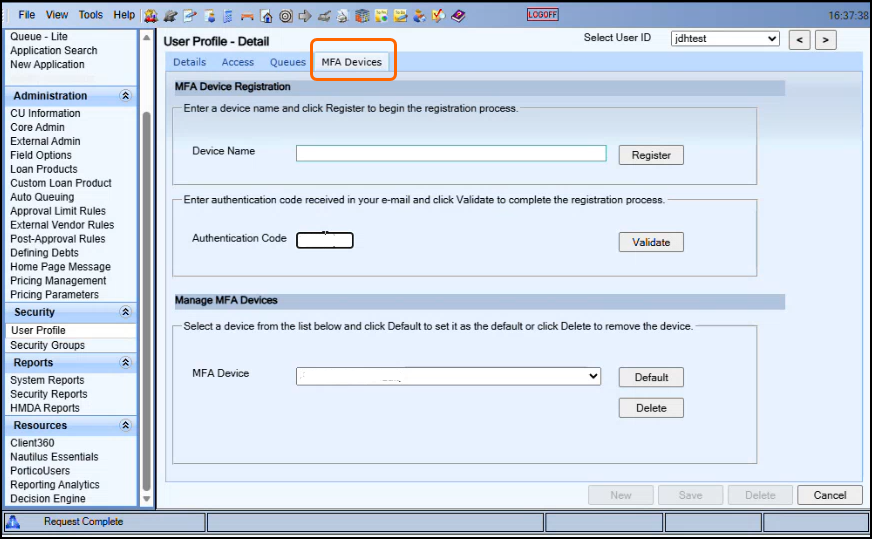
- User Profile > User Profile - Detail > MFA Devices tab. User Profile admin security permission required. The user can register devices and manage devices for all users from this page.
Register an MFA Device using the Tools menu
Follow these steps to register an MFA device:
-
Select the Tools menu > MFA Devices. The MFA Devices pop-up window appears.
- Enter a name in the Device Name field (1-30 characters, including spaces and special characters).
- Select Register. The system sends the Loancierge MFA Device Registration email. If the system sends the email successfully, the system displays the "Email has been sent to complete the MFA Device Registration" message. This message only appears on the Tools menu > MFA Devices pop-up window.
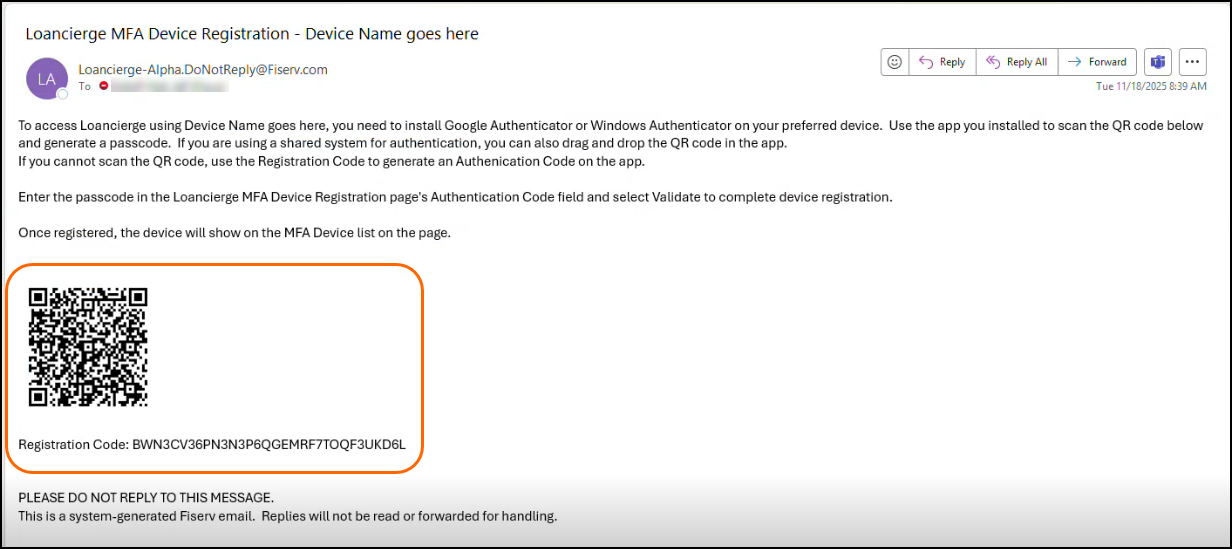
- Check your email for the Loancierge MFA Device Registration email.
Scan the QR code or copy the Registration Code. To complete the registration of your preferred device, open your Authenticator app. Refer to Authenticator apps for details.
- From your Authenticator app, select your preferred device and click the six‑digit Authentication Code to automatically copy it.
-
Enter or paste the six‑digit Authentication Code from the Authenticator app into the Authentication Code field on the MFA Devices pop-up window.
Note: The system requires a Device Name registration before you enter the Authentication Code.
-
Select Validate to complete the registration.
When you add or update a device, the system immediately displays the change in the MFA Device field. You can view these updates on the MFA Devices page under User Profile, the MFA Devices pop-up window under Tools, and the Authentication Code pop-up window on the Logon page.
Note: After you enter the device name and select Register, the Device Name field clears. The system has already saved the name temporarily, so you do not need to reenter it. Enter the authentication code and select Validate to complete the device registration. E‑mail remains the default MFA device unless you change it.
Register an MFA Device using User Profile
-
Select Security > User Profile > User Profile - List. You must have User Profile admin security permission to view this page.
-
Select the User ID that requires MFA Device Registration. The User Profile - Detail page opens.
-
Select the MFA Devices tab.
Note: If you are registering a device for another User ID, you must be in communication with the other user. The other user needs to register their preferred device at this time so you can obtain their six‑digit Authentication Code.
-
From here, follow the same process you use when registering a device through the MFA Devices pop-up window. For step‑by‑step instructions, refer to Register an MFA Device using the Tools menu.
Troubleshooting
If you stop Device Registration after receiving the email and your Loancierge session expires, you must restart the registration process. Enter the Device Name, select Register, and request a new email. You cannot use earlier emails. If you leave the Device Registration process before the system registers the device name—either by navigating away from the MFA Devices page or by logging out—you cannot resume the process. You must start the registration again.
Inactive, suspended, or never logged in user
As an admin user registering a device for another user, you may see the following messages:
-
When an admin user enters a Device Name and selects Register on the MFA Devices tab for a user account that is inactive or suspended, the system displays the error: "User Status must be Active to add MFA Devices."
The admin must go to User Profile > User Profile - Details tab and change the status to Active and then return to the MFA Devices tab to restart Device Registration.
-
The system displays the error "Initial user logon is required prior to MFA Device registration." when an admin attempts to register a device for a user who has not completed their initial Loancierge log in after an admin creates their User ID.
Manage MFA Devices
Follow these steps to manage your existing MFA device:
-
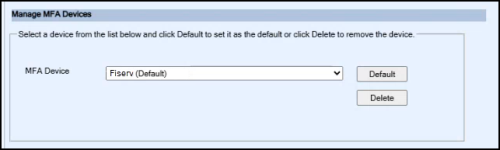
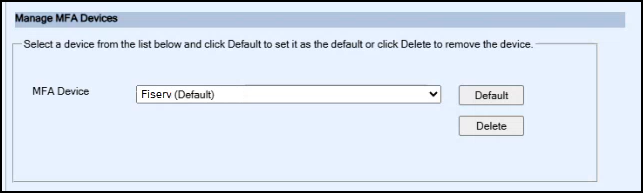
Scroll to the Manage MFA Device section on the MFA Devices tab or pop-up window.
-
Select a device from the MFA Device dropdown list.
-
Choose Default to set it as the default device for authentication. Loancierge sets E-mail as the default unless changed.
-
Choose Delete to remove the device.
You cannot delete the E-mail device. If you attempt to do so, the system displays the message: "E-mail Device cannot be deleted."Note: When you delete a default MFA Device, the system assigns the next device in the list as the new default. You may change the default device at any time.
The following system messages appear when deleting a device:
-
Are you sure you want to delete the selected Device?
-
E-mail device cannot be deleted.
-
Device successfully deleted.
The following system messages appear when changing the default device:
-
Are you sure you want to change the Default Device?
-
Device set to Default.
-
Device already set as Default.