Logging On
-
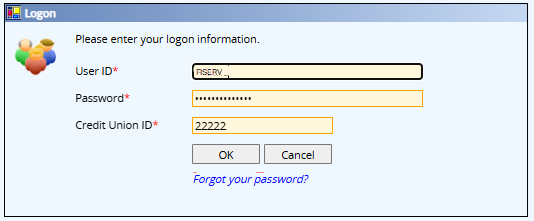
On the Logon page, enter your User ID, Password, and Credit Union ID and select OK.

-
The Logon page behavior depends on your default authentication method:
-
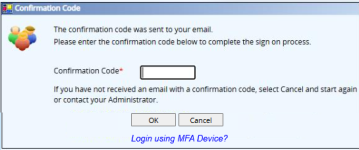
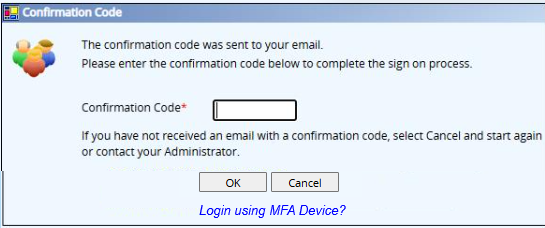
When E-mail is your default MFA method or you have not registered any MFA devices yet, the system shows the Confirmation Code pop-up window. A Login using MFA Device? link appears so you can switch to the Authentication Code pop-up window.
-
When you have registered MFA devices and selected one of your MFA devices as your default (other than E-mail), the system shows the Authentication Code pop-up window instead of the Confirmation Code pop-up window. A Login using E-mail? link appears so you can switch back to the Confirmation Code pop-up window.
Refer to Add MFA Devices for details.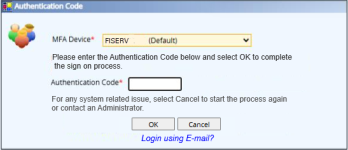
If you forget your password and select the Forgot your Password? link, the system displays either the Confirmation Code or Authentication Code popup window based on your default authentication method. If you have both an MFA device and E‑mail available, you can use either method to complete the two‑step authentication during the password reset process.
-
-
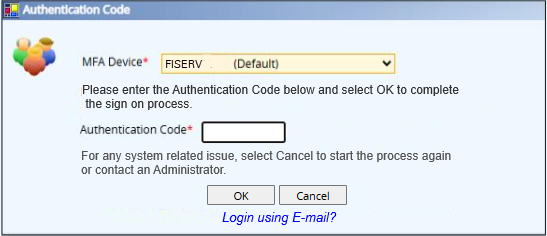
On the Authentication Code pop-up window:
-
The system preselects your default MFA Device from the MFA Device field. The system disables the MFA Device field when you have only one MFA device set up besides email.
-
The system enables the MFA Device field when you set up multiple MFA devices, allowing you to select a different device. Select the down arrow on the MFA Device field and choose another option. The list comes from your MFA Device pop-up window or tab.
-
Email does not appear in the MFA Device dropdown list on this pop-up window.
Note: If you select the Login using MFA Device? link on the Confirmation Code pop-up window and there are no registered devices, the Logon page displays the error "No MFA Devices found for user".
-
-
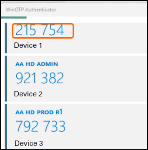
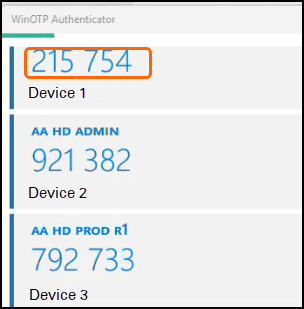
Enter the six-digit code from the Authenticator app on your registered device into the Authentication Code field and select OK to log in. The system validates the code.
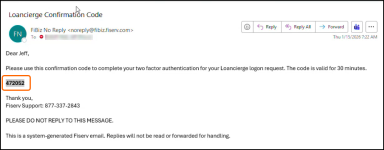
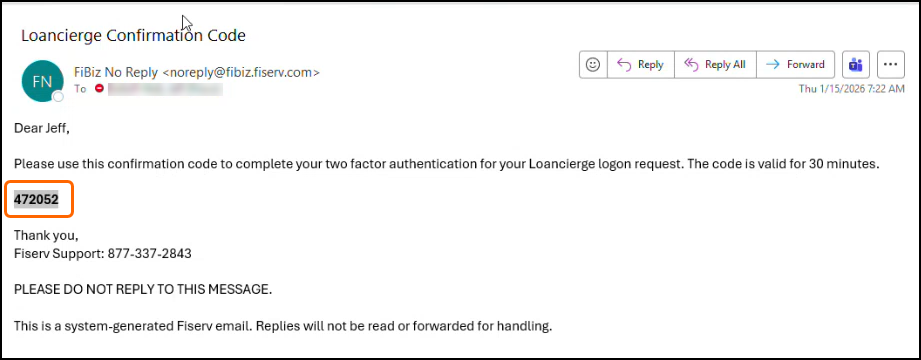
If email is your default authentication method, or if you do not have any registered devices, enter the six-digit code Confirmation Code sent to you in your registered email ID. Enter this into the Confirmation Code pop-up window.Note: Authentication codes in your Authenticator app change every minute, so they expire much faster than email Confirmation Codes, which remain valid for 30 minutes. This shorter expiration time provides stronger security.
Sample Loancierge Confirmation email
Sample Authenticator app code
Note: If the Authentication Code or Confirmation Code pop-up appears during log in and you cannot enter the required code, the pop-up remains active for 15 minutes. After 15 minutes of inactivity, the system automatically refreshes and displays the blank Logon page.
-
To close the dialog box without logging on, select Cancel.
-
Select the Forgot your password? link to reset your password.
You are now logged into Loancierge. Once you complete the multifactor authentication process from a specific device, you do not need to repeat it again for 12 hours if logging in from the same device with the same IP address. For example, you log off for lunch and log back into Loancierge after lunch. Loancierge remembers that you completed the multifactor authentication 12 hours earlier and will not prompt you to enter a Confirmation Code until the 12-hour limit has been met.
Note: The 12-hour limit cannot be customized.
Important: If the system generating the Confirmation Code does not respond to Loancierge's Confirmation Code request, Loancierge determines if your user ID and password are correct for your institution, and then bypasses the Confirmation Code prompt and logs you into Loancierge.
Suspended or inactive accounts
When you enter credentials for a suspended or inactive account during log in, the system does not display an error message. The system instead allows you to:
-
Reach the Authentication Code or Confirmation Code pop-up window.
-
Stay on the Confirmation Code pop-up without receiving an email with a code.
-
Enter a code on the Authentication Code pop-up window, however the system does not process the code from your Authenticator app, even if it is valid.
Failed log in attempts and account suspension
Loancierge suspends your account after you reach the allowed number of failed login attempts. The following actions count as failed attempts:
-
Entering the wrong username or password.
-
Submitting a blank authentication or Confirmation Code.
-
Selecting Cancel on either pop-up window during log in.
-
Submitting a wrong or expired Confirmation Code or Authentication Code.
Once you reach the limit, the system automatically suspends your account.
The system suspends your account after you reach the number of failed login attempts specified by your credit union. Administrators configure this value in one of the following locations (security permissions required):
-
Max Failed Attempts field in the Loancierge Help Desk > Institution Detail > Detail tab.
-
Max Failed Attempts field in Loancierge > Credit Union Information > Overview tab.
When you reach the Maximum Failed Attempts
If you enter an incorrect authentication or Confirmation Code and reach the maximum number of failed attempts:
-
Selecting OK returns you to the Logon page.
-
You can reenter your username and password to display the Authentication Code or Confirmation Code pop-up again. However, the system does not process any Authentication or Confirmation Codes you enter because the system suspended your account.
Account Reactivation
If your account becomes suspended:
-
Contact an administrator to reactivate your account.
-
You cannot use the Forgot your password? link while your account is suspended.
Password Requirements
Loancierge requires that all user passwords meet the following criteria:
- Must contain at least 14 characters
- Must use both upper and lower case characters
- Must use both alpha and numeric characters
- Must contain at least one of the following: ! @ # $ % ^ & * ( )
- Cannot contain more than two repeating characters consecutively
- Cannot contain your Loancierge login ID
- Cannot contain generic or easy to guess passwords (for example, password, Fiserv, fiserv1…)
- Same password cannot be reused within the last 14 password changes
Multifactor Authentication FAQs
Email FAQs
If I currently access Loancierge using a link in my core application, do I need to sign in and enter a Confirmation Code in Loancierge?
If you currently access Loancierge using a link in your core application, and Loancierge currently prompts you for a user ID and password, you must enter a user ID, password, and a Confirmation Code or Authentication Code..
If you currently access Loancierge using a link in your core application, and Loancierge does NOT currently prompt you for a user ID and password, you can continue accessing Loancierge without entering a Loancierge user ID, password, and code.
What should I do if I don't receive an email with a Confirmation Code?
First, check your email Spam or Junk folder to see if the email is there. If you don't see the email, you may have mistyped your user ID on the initial User Logon dialog box. Select Cancel and retry the login process.
If you still do not receive a Confirmation Code email, ask your credit union system administrator to check the User Profile - Detail window for your user ID. Make sure that your user ID is active and that there is a valid, unique email address specified for your user ID.
Once you have verified your email address, select Cancel and retry the login process.
What should I do if I entered my Confirmation Code, but I get an error message?
If you enter your Confirmation Code and you receive an error message, select OK. If you are copying and pasting the Confirmation Code from your email, try entering your Confirmation Code again. Be sure to check for any blank spaces after you copy and paste the Confirmation Code into the field.
Important: If you enter the Confirmation Code incorrectly five times, the system that generates the Confirmation Code will temporarily lock your user ID for 15 minutes. After 15 minutes, you can restart the login process.
What should I do if I continue to receive an error message?
If you continue to receive an error message, you may have entered your user ID or password incorrectly on the initial User Logon dialog box. Select the Cancel .button on the Confirmation Code prompt and begin the login process again. You can also ask your credit union system administrator to check the Security Reports > Failed Logon Attempts Report. The Failed Logon Attempts Report lists the failed login reason. To open the Security Reports window, from the left navigation pane, under Reports, select Security Reports.
Will I receive a Confirmation Code if my password expired and I was issued an authorization code using the Forgot your password link?
Yes. Enter your Authorization Code on the Reset Password dialog box and select Continue. Then, complete the New Password and Confirm New Password fields and select Reset Password to reset your Loancierge password.
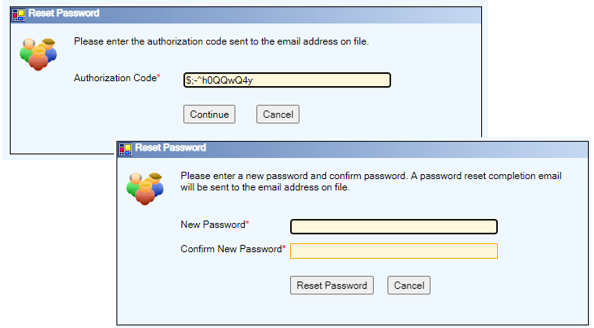
Once you complete the Reset Password fields, the Confirmation Code or Authorization Code prompt appears. Enter the Confirmation Code sent to your email or the Authorization code on your MFA device, and select OK.
Will I receive a Confirmation Code if my password expired within the 12-hours after completing multifactor authentication from the same device?
If your password expires during your 12-hour MFA session, and you attempt to sign in from the same device with the same IP address (for example, the next morning), Loancierge remembers that you completed the multifactor authentication 12 hours earlier and does not prompt you again to enter a Confirmation Code. When you enter your user ID, recently expired password, and credit union ID on the Logon dialog box and select OK, only the expired password message appears.
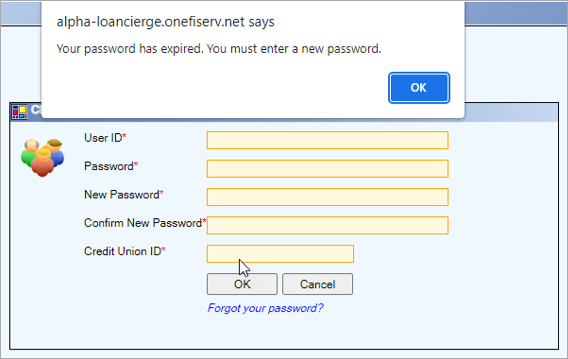
Select OK to change your Loancierge password.
You are required to obtain a Confirmation Code from your email as follows:
- Every 12 hours
- If you have changed devices since last authentication
- If you clear the cookies on your device since the last authentication
- If you disconnect from VPN since the last authentication
What happens if I enter an incorrect Password or CUID within the 12-hours after completing multifactor authentication?
If you enter an incorrect Password or CUID during your 12-hour MFA session, you receive the usual Loancierge edit message.
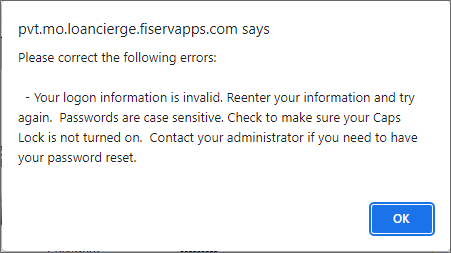
Select OK and correct any errors to complete sign in.
The credit union's email system is down. How are we going to receive our Confirmation Codes?
If your credit union's email system is down, contact Client Services to temporarily disable the multifactor authentication process for your credit union. This will allow you to log into Loancierge without a Confirmation Code.
Important: Be sure to notify Fiserv when your email system is functioning again to enable the multifactor authentication process.
TOTP (Time‑Based One‑Time Passcode) FAQs
What is a TOTP code?
TOTP code is a six‑digit, time‑sensitive code generated by an authenticator app on your phone, tablet, or computer. It is used as an extra layer of security when signing into Loancierge.
Do I have to use TOTP?
No. Email authentication still works. If you do not register a TOTP device, you will continue to receive authentication codes by email.
Which authenticator apps can I use?
Loancierge supports the following authenticator apps:
-
Google Authenticator
-
Windows Authenticator
-
WinOTP / Windows OTP (desktop version)
Your credit union may require a specific option.
Can I register more than one device?
Yes. You can register up to five MFA devices. Email is always included and cannot be removed.
What is my default MFA method?
Email is your default until you:
-
Register a TOTP device
-
Select it as your Default in the MFA Devices page
-
You can change your default at any time.
How long are TOTP codes valid?
TOTP codes are valid for one minute and change automatically in your authenticator app.
How long are email confirmation codes valid?
Email confirmation codes remain valid for 30 minutes.
Why don’t I see my email listed in the MFA Device dropdown?
The Authentication Code pop-up only lists authenticator‑based devices. Email remains available, but it does not appear in that dropdown list.
What happens if I make a mistake entering the code?
You may see one of these messages:
-
Authentication Code entered is not valid.
-
Authentication Code has expired.
-
Authentication Code is required.
-
Just reenter a new valid code from your app.
Refer to TOTP Error and Information messages for details.
What if I don't receive the authentication pop-up when logging in?
If your account is suspended or inactive, Loancierge may display an authentication pop-up window but will not process codes.
Contact your administrator to reactivate your account.
Why does Loancierge say “No MFA Devices found for user”?
This message appears if you try to choose the Login using MFA Device? link but you have no registered TOTP devices.
What happens if I enter codes incorrectly too many times?
Your MFA account may be temporarily locked.
If the system suspends your user account due to too many failed attempts, you must contact an administrator to reactivate it.
What should I do if my Device Registration process is interrupted or my session expires?
If your Loancierge session expires after you receive the verification email, you must restart the Device Registration process. Reenter the Device Name, select Register, and request a new verification email. Previously received emails cannot be used.
Can I resume Device Registration if I leave the page or log out before completing it?
No. If you navigate away from the MFA Devices page or log out before the system registers your device name, you cannot resume the process. You must start the registration again from the beginning.
Can my credit union opt out of using MFA or TOTP?
Other than when your email system is down, no. As part of our cyber security, Fiserv requires MFA for access to Loancierge.